Ultimate VO Studio Audacity Upgrade
Upgrade Audacity! Easier for beginners, faster for pros. Requires Windows 10/11 or Mac OS 12 (Monterey/2022) or later. Mac
Click the links below to get started:

Below is a visual example of how you can use keystrokes for simple level changes. Ctrl+ a number increases amplitude, Shift decreases, and Alt sets the overall level (Normalization). Use numbers at the top of the keyboard, NOT the number pad.
1. Install Audacity (if Needed)
Version 5 of Ultimate VO Studio will support the "MuseHub" version—until then, do NOT download the "MuseHub" version of Audacity. Links to download Audacity at AudacityTeam.org:
- Windows: Download 3.7.1 64 bit installer
- Mac : Download Universal dmg
After installing Audacity, you will need to download FFMPEG here.
Uninstall and Reinstall Audacity if needed
If you downloaded the "Muse Hub" version, uninstall it.
2. Install VO Studio
Download all Win/Mac files from here
For Windows, use the included installer.
For Mac, copy files to these locations:
- PLUGINS: Copy to ~/Library/Application Support/audacity/Plug-Ins
- MACROS: Copy to ~/Library/Application Support/audacity/Macros
You want the user library (~), not the system library.
3. Install FFMPEG into Audacity
Requires Windows 10/11 or Mac OS 12 (Monterey/2022) or later.
FFMPEG lets Audacity read virtually any file type that contains audio. For example, you can open a video directly into Audacity just as if it was an audio file. FFMPEG is free if you download and install it yourself (if Audacity installed it for you, they would have to pay a fee).
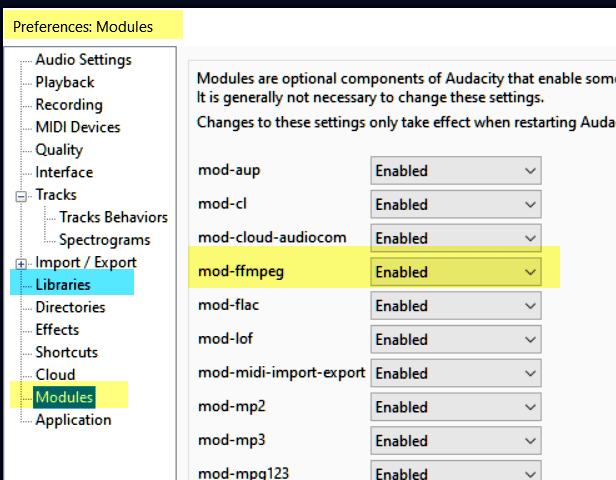
For Windows, the file you download installs FFMPEG into Audacity simply by running it, and after running it, Audacity will install it on the next restart. UPDATE: Formerly, Audacity listed FFMPEG under Preferences > Libraries (blue highlight below), but from version 3.7.7 onward, lists it under Modules, as shown. If you have installed FFMPEG, usually a restart of Audacity will install it, but you may need to choose "Enabled" from the dropdown.
To find the FFMPEG file to install, scoll to the BOTTOM of this page first, and only THEN scroll up to find the download link. The portion of the page the correct links are on should look something like this:
For MAC,
- Close Audacity
- Download the FFmpeg binary for macOS (see below)
- Unzip the downloaded file. You will get the ffmpeg executable file.
- Drag the ffmpeg executable file to a folder
- Open Audacity. In many cases, Audacity will automatically detect the FFmpeg library and no further action is needed
- In Audacity, go to Audacity > Preferences > Libraries (on Mac).
- Click the Locate... button next to "FFmpeg Library".
- If prompted that FFmpeg has been found, you can click "No" to skip manual location.
- Select the appropriate FFmpeg library file. On Mac, this is typically named libavformat.dylib (the exact name may vary slightly depending on version, e.g., libavformat.58.dylib) • FFmpeg libraries installed by this package are placed in system folders such as /usr/local/lib or /opt/local/lib or you can search for files named
libavformat*.dylib - Click Open, then OK to confirm your selection and close the Preferences window
4. Mac Only: Plugins
Running Newer Plugins
Audacity already runs natively on Apple Silicon — it has since version 3.2 (released in 2022), and has run .VST3 plugins since the same time. So newer plugins should run fine on Audacity on newer Mac. Newer macs can also run older software when needed. One of my favorite plugins DeBess, has a newer (AU) signed version for Mac that you can download here. Then, (1) drop it into ~/Library/Audio/Plug-Ins/Components/, (2) run xattr -cr on it, and (3) enable it in Audacity.
- Copy it into components: Finder, hold Option, click Go in the menu bar, then Library, then navigate to Audio → Plug-Ins → Components
- For Terminal, (Cmd + Space, type Terminal) and run xattr -cr ~/Library/Audio/Plug-Ins/Components/DeBess.component
- Audacity > Tools > Plug-in Manager > Find DeBess, select it, click Enable, then OK and It should appear under the Effect menu
Running Older Plugins on ARM Macs
Before 2020, Macs used Intel chips, which run on a different architecture called x86_64. When Apple switched to their own chips, all the software had to be rebuilt to run natively on arm64. Many plugins were compiled for x86_64 (Intel). If you have an older plugin, macOS needs Rosetta 2 as a translator to run the older Intel software.
But when using an arm64 Audacity, you must use arm64 plugins. Plugins for x86-64 (Intel Macs) will not load. If you're on an M1/M2/M3/M4 Mac (such as Arm64), you need Rosetta 2 installed to run Intel plugins. It may already be installed, so this step will either install it or tell you it's already there.Open Terminal and run:
softwareupdate --install-rosetta (This lets your Mac run Intel plugins. )
How to open Terminal: Click the magnifying glass icon (Spotlight) in the top-right corner of the menu bar (or press Cmd + Space). Type Terminal and hit Enter
If Audacity itself is running as a native arm64 app, it might still refuse to load an Intel-only VST. In that case you'd need to run Audacity under Rosetta:
In Finder, go to Applications, find Audacity
Right-click → Get Info
Check the box that says "Open using Rosetta", then close the info window and relaunch Audacity
That forces Audacity to run in Intel mode, which lets it load Intel-only plugins like DeBess. The downside is slightly lower performance, but for audio editing it's usually fine. As long as the box remains checked, Audacity will open in Rosetta mode.
NEW! Instant Install Alternative:
Download the instant install zip file.